> ## Documentation Index
> Fetch the complete documentation index at: https://docs.cloneable.ai/llms.txt
> Use this file to discover all available pages before exploring further.
# Export to KMZ (Google Earth)
> Make a .kmz file to open in Google Earth or GIS software, or send to a client
A KMZ file opens in Google Earth and most GIS software. It shows each pole, span and anchor with its map icon and pole number. Clicking an item opens a popup with its details and, if you include them, its photos.
Open the job on the map, click **Export data** and choose **Export to KMZ**.
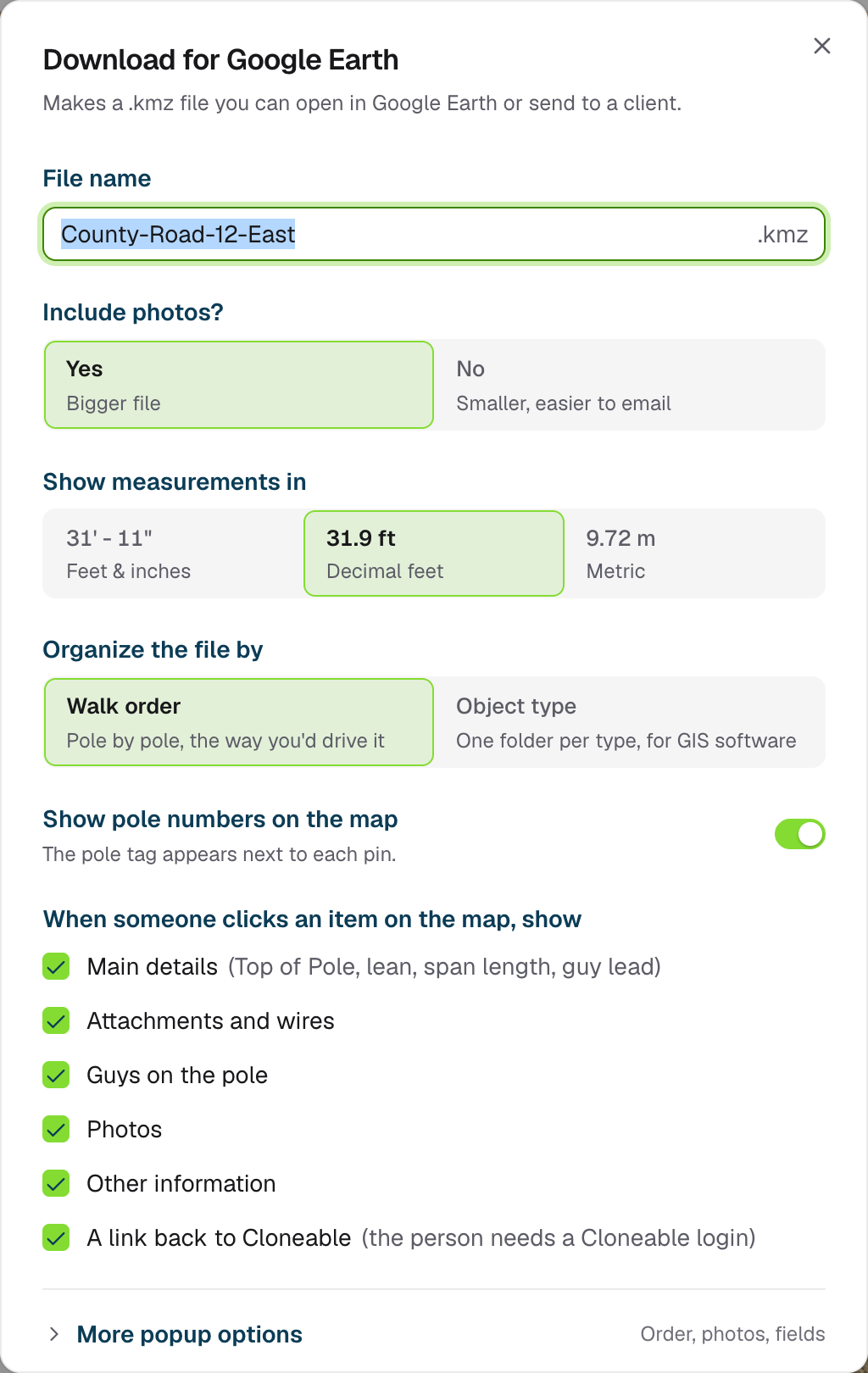 ## Options
| Option | Choices | Default |
| - | - | - |
| **File name** | Any name; `.kmz` is added | The job name |
| **Include photos?** | **Yes** (bigger file) or **No** (smaller, easier to email) | Yes |
| **Show measurements in** | Feet & inches, decimal feet or metric | Your configuration's unit |
| **Organize the file by** | **Walk order** (pole by pole, the way you'd drive it) or **Object type** (one folder per type, for GIS software) | Walk order |
| **Show pole numbers on the map** | On or off | On |
### What the popups show
Under **When someone clicks an item on the map, show**, choose: **Main details** (top of pole, lean, span length, guy lead), **Attachments and wires**, **Guys on the pole**, **Photos**, **Other information**, and **A link back to Cloneable** (the person needs a Cloneable login). All are on by default.
**More popup options** lets you list attachments highest first or as collected, show only the measurement photo or all photos, and hide or rename individual fields.
**For GIS software**: **Add a data table to each item** lets ArcGIS or QGIS read every field as a column. Google Earth doesn't show it.
Your choices are remembered in this browser for next time. **Reset to defaults** puts them back.
## Download
The dialog shows what the file will contain and roughly how big it will be. Click **Download**. A progress window shows each object as it's processed, then the file downloads.
Over 50 MB, some GIS software is slow to open the file. Choose **No** under **Include photos?** to make it smaller.
This documentation is built and hosted on [Mintlify](https://mintlify.com), a developer documentation platform.
## Options
| Option | Choices | Default |
| - | - | - |
| **File name** | Any name; `.kmz` is added | The job name |
| **Include photos?** | **Yes** (bigger file) or **No** (smaller, easier to email) | Yes |
| **Show measurements in** | Feet & inches, decimal feet or metric | Your configuration's unit |
| **Organize the file by** | **Walk order** (pole by pole, the way you'd drive it) or **Object type** (one folder per type, for GIS software) | Walk order |
| **Show pole numbers on the map** | On or off | On |
### What the popups show
Under **When someone clicks an item on the map, show**, choose: **Main details** (top of pole, lean, span length, guy lead), **Attachments and wires**, **Guys on the pole**, **Photos**, **Other information**, and **A link back to Cloneable** (the person needs a Cloneable login). All are on by default.
**More popup options** lets you list attachments highest first or as collected, show only the measurement photo or all photos, and hide or rename individual fields.
**For GIS software**: **Add a data table to each item** lets ArcGIS or QGIS read every field as a column. Google Earth doesn't show it.
Your choices are remembered in this browser for next time. **Reset to defaults** puts them back.
## Download
The dialog shows what the file will contain and roughly how big it will be. Click **Download**. A progress window shows each object as it's processed, then the file downloads.
Over 50 MB, some GIS software is slow to open the file. Choose **No** under **Include photos?** to make it smaller.
This documentation is built and hosted on [Mintlify](https://mintlify.com), a developer documentation platform.