> ## Documentation Index
> Fetch the complete documentation index at: https://docs.cloneable.ai/llms.txt
> Use this file to discover all available pages before exploring further.
# Export a PDF report
> A report with a page per pole or point, measurements, maps and photos
The PDF report gives each pole, midspan, custom point or custom line its own pages, with measurements, attributes and annotated measurement photos. It can also include maps and a ZIP of the original photos.
Open the job on the map, click **Export data** and choose **Generate PDF Report**.
## Options
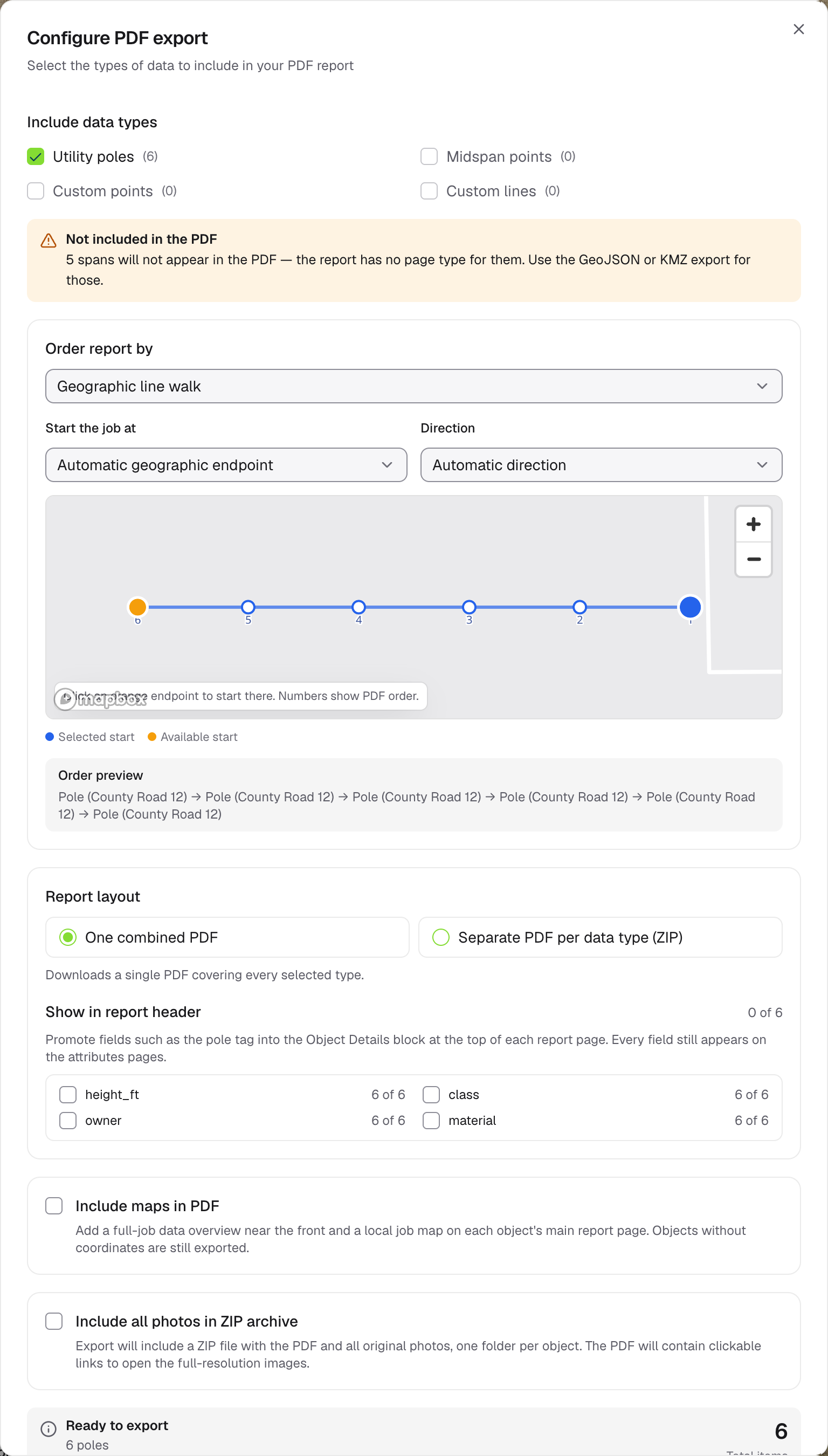
Tick **Utility poles**, **Midspan points**, **Custom points** or **Custom lines**. Nothing is ticked at first. Spans and polylines have no page type, and the dialog tells you if the job has any.
**Geographic line walk** (default) follows the line pole by pole. Pick the starting pole on the small map or from the list, and the direction. You can also order by a field or by capture date. **Order preview** shows the first few objects.
**One combined PDF** (default), or **Separate PDF per data type (ZIP)** with a folder for poles, midspans and so on.
Pick up to 6 fields, such as the pole tag, to show at the top of each object's page. Every field still appears on the attributes pages.
Adds a map of the whole job near the front and a local map on each object's page. Choose **Street** or **Satellite with labels**. Off by default.
Downloads a ZIP with the PDF and every original photo, one folder per object. The PDF links to each full-size photo. Choose an attribute to name folders by, for example the pole tag, so the folders are easy to find. Off by default.
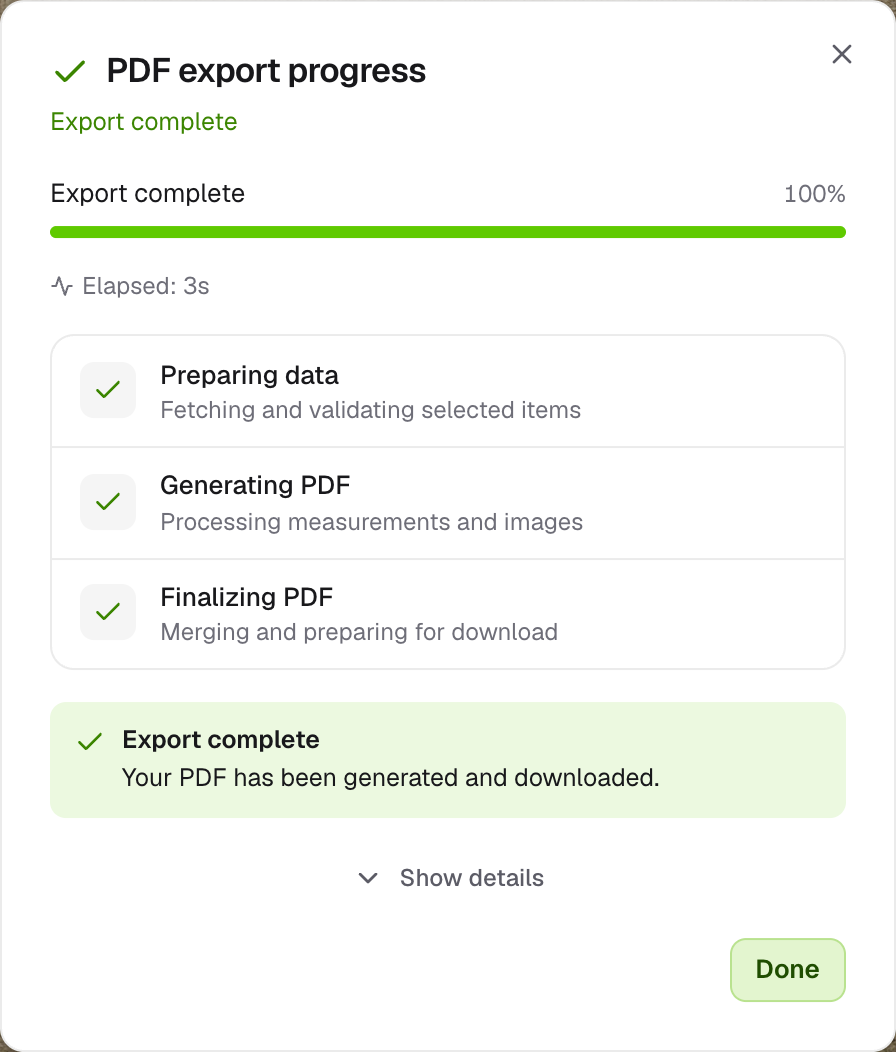
Click **Export PDF**. A progress window shows the PDF being prepared, generated and finalised, then the file downloads.
## File names
| Output | Name |
| - | - |
| One PDF | `bulk_pole_inspection__
 ## Options
 ## File names
| Output | Name |
| - | - |
| One PDF | `bulk_pole_inspection_
## File names
| Output | Name |
| - | - |
| One PDF | `bulk_pole_inspection_