> ## Documentation Index
> Fetch the complete documentation index at: https://docs.cloneable.ai/llms.txt
> Use this file to discover all available pages before exploring further.
# Import a KML, KMZ or GeoJSON file
> Bring poles, spans and anchors from a map file into a Cloneable job
If your poles and lines live in Google Earth, a GIS export or another design tool, you can bring them into Cloneable as a job from a map file. Cloneable reads three formats:
| Format | Extension | Size limit |
| - | - | - |
| KML | `.kml` | 50 MB |
| KMZ (compressed KML) | `.kmz` | 100 MB |
| GeoJSON | `.geojson` or `.json` | 50 MB |
Points become poles, anchors or custom points. Lines become spans, custom lines or polylines. Coordinates should be in latitude and longitude (WGS84), which is what Google Earth and most GIS exports use.
There are two parts. You do the first once per kind of file, and the second for every file.
1. **Build a configuration** from a sample file, so Cloneable has a template for each kind of feature in it.
2. **Import the file as a job** using that configuration.
Building a configuration needs an organization admin. Anyone can import a file once a configuration exists.
## Build a configuration from a file
Open **Settings** → **Configurations** → **New configuration** → **From a KML file**.
Drop your file in, or click to browse. Cloneable reads it and shows how many points and lines it found.
Check the kinds of features Cloneable found, with a confidence level and a few examples of each.
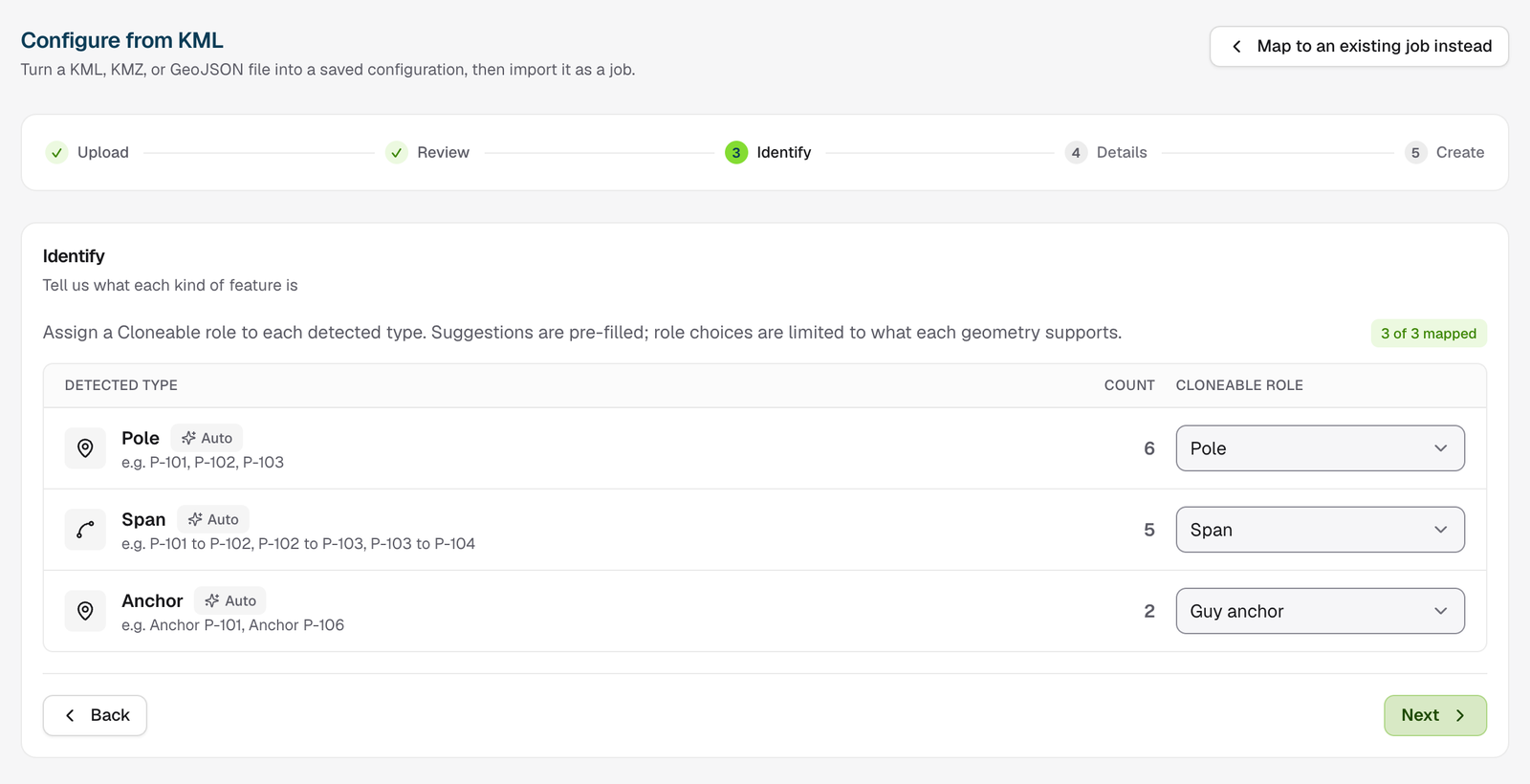
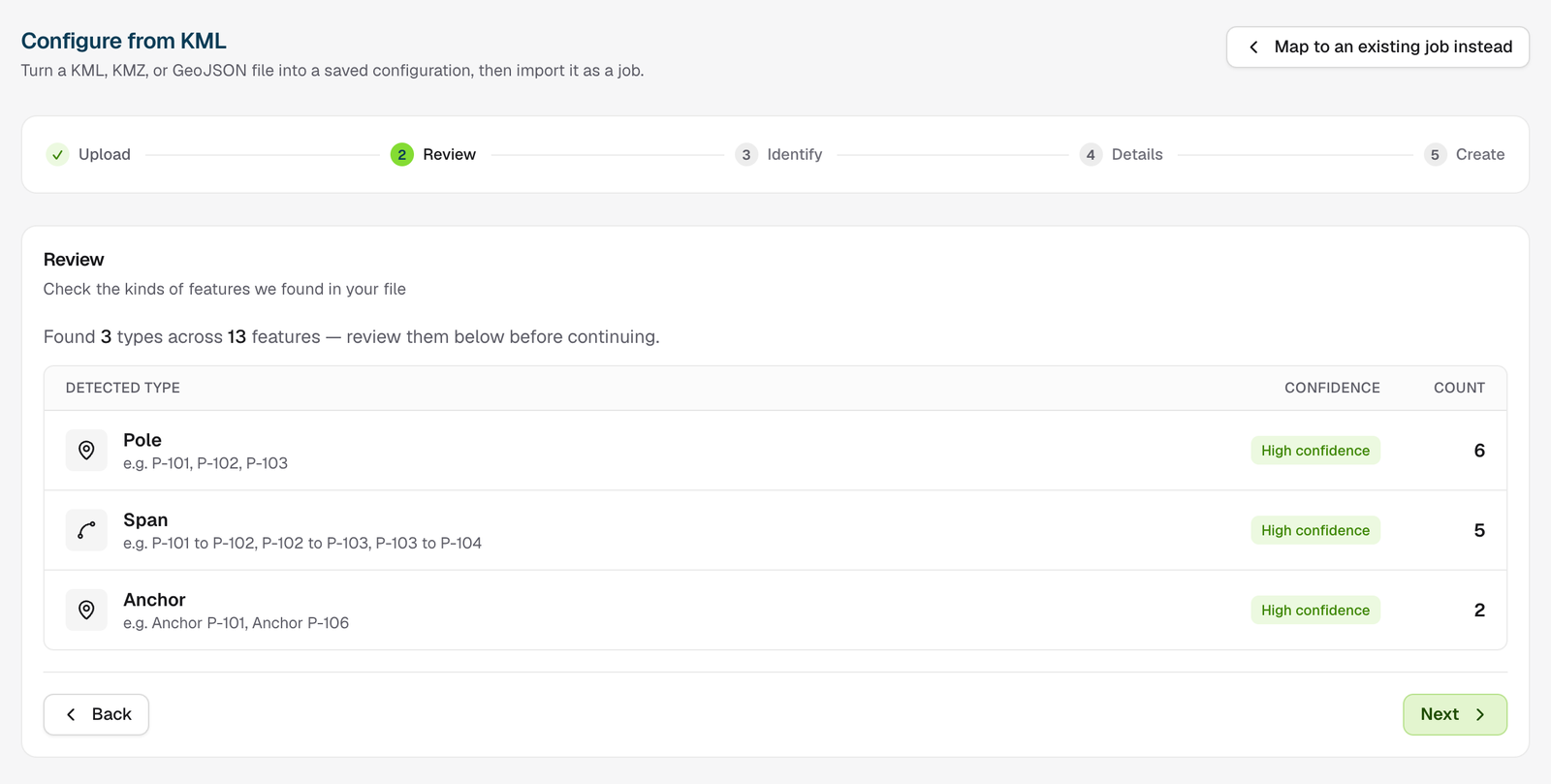 Tell Cloneable what each kind of feature is: **Pole**, **Span**, **Guy anchor**, **Span measurement**, **Custom point**, **Custom line**, **Polyline** or **Skip**. Suggestions are filled in for you. Only one kind can be the pole.
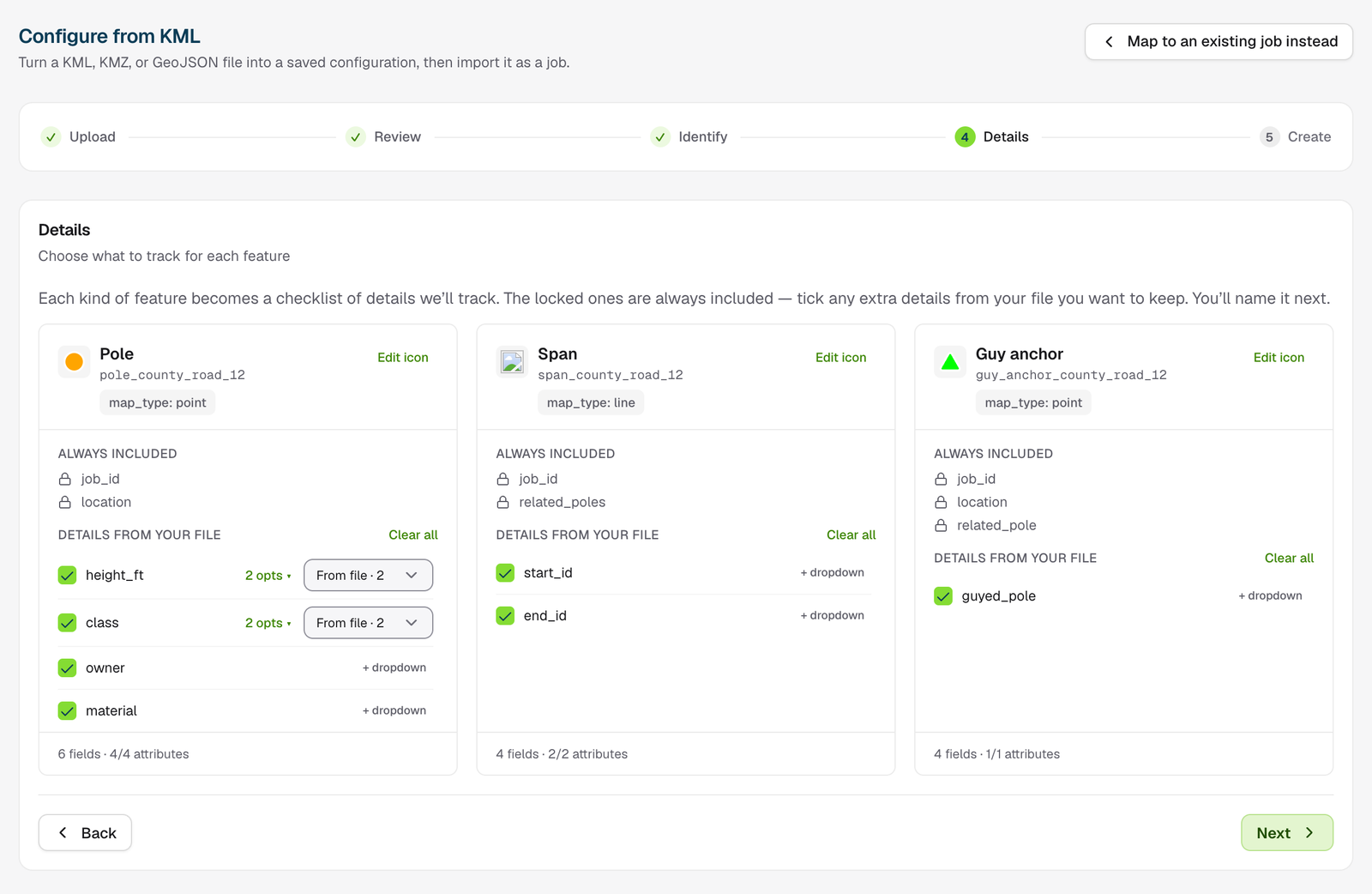
 Choose which details from the file each template keeps. Fields like the job and location are always included. You can turn a field into a dropdown, using the values found in the file or your own list, and change each template's map icon.
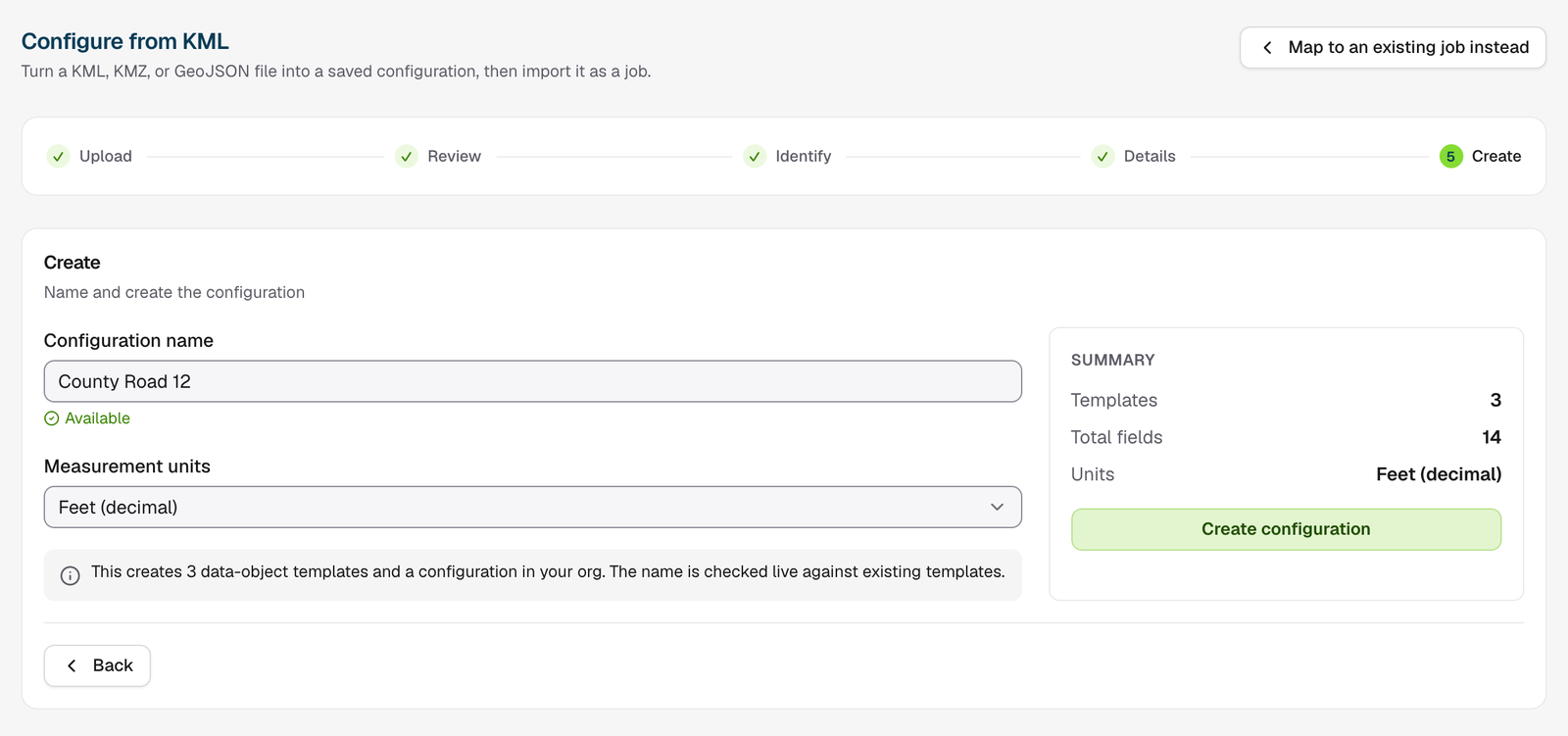
 Name the configuration and choose measurement units (**Feet (decimal)**, **Feet & inches** or **Metric (meters)**). The name is checked as you type. Click **Create configuration**.
 When it's done, click **Import a KML as a job** to bring the same file straight in.
## Import a file as a job
Start from **Add job** on the dashboard and choose **Import from KML**, or from **Import a KML as a job** above.
Drop in your file. Cloneable shows the points, lines and types it found.
Add the features to a job you already have, or choose **Create new job**, pick a configuration and name the job. Each configuration shows how well it fits the file, for example "handles all 3 kinds".
When it's done, click **Import a KML as a job** to bring the same file straight in.
## Import a file as a job
Start from **Add job** on the dashboard and choose **Import from KML**, or from **Import a KML as a job** above.
Drop in your file. Cloneable shows the points, lines and types it found.
Add the features to a job you already have, or choose **Create new job**, pick a configuration and name the job. Each configuration shows how well it fits the file, for example "handles all 3 kinds".
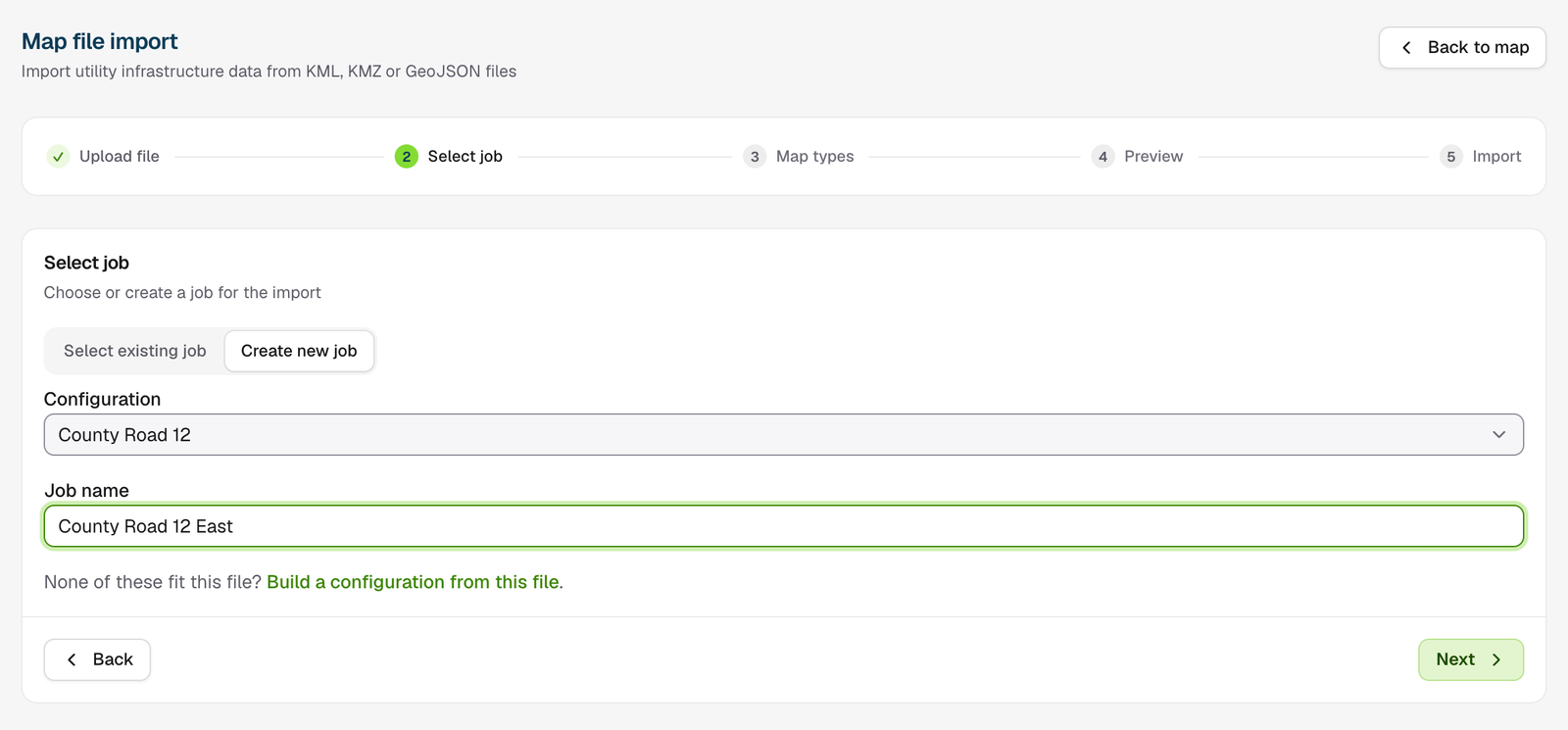 Choose a template for each kind of point and line in the file. Anything left on **Skip import** isn't imported. You can also map a placemark's name or attributes onto template fields.
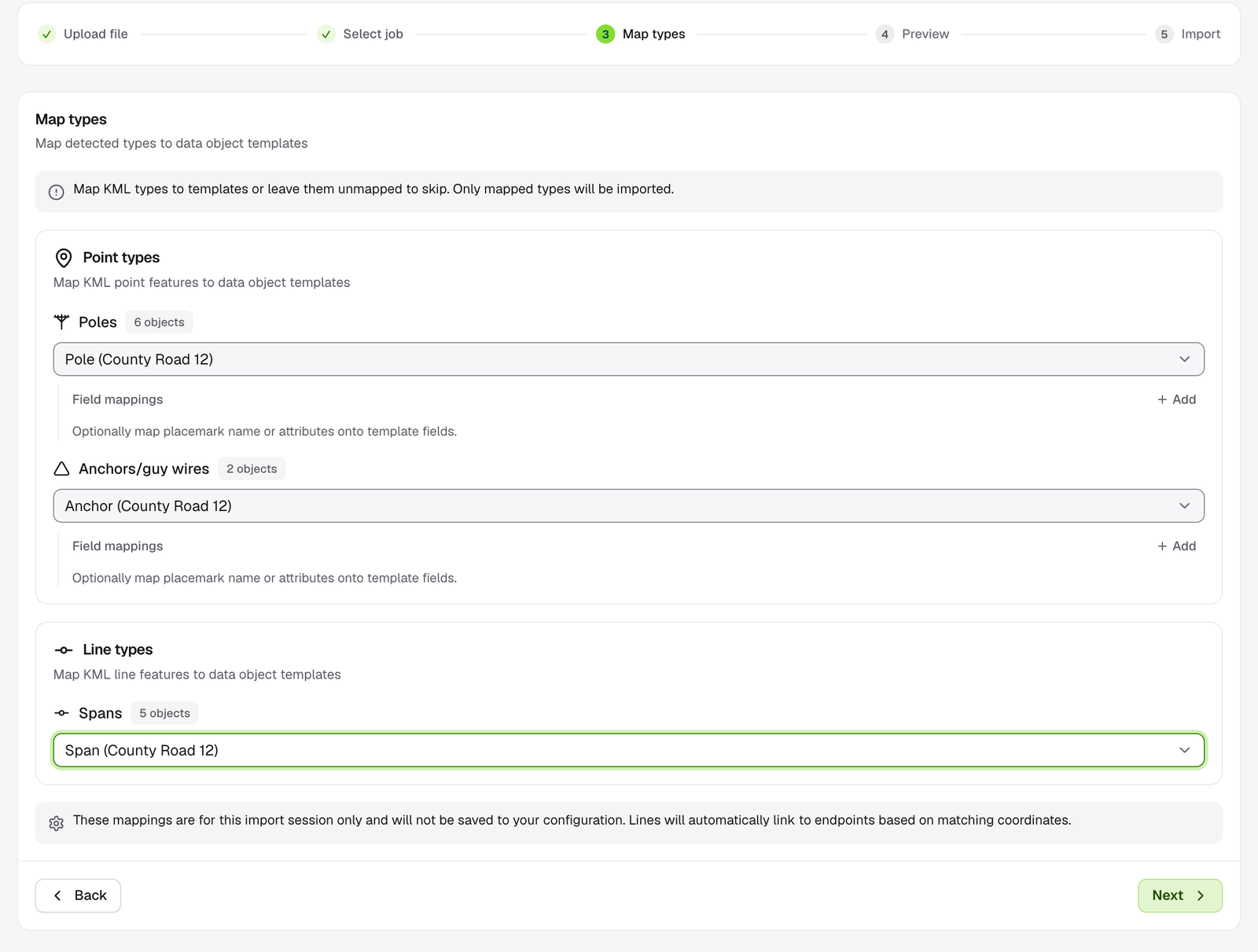 Check how many objects go to each template and look at a sample of the data. Lines connect to poles automatically where their ends match a pole's position.
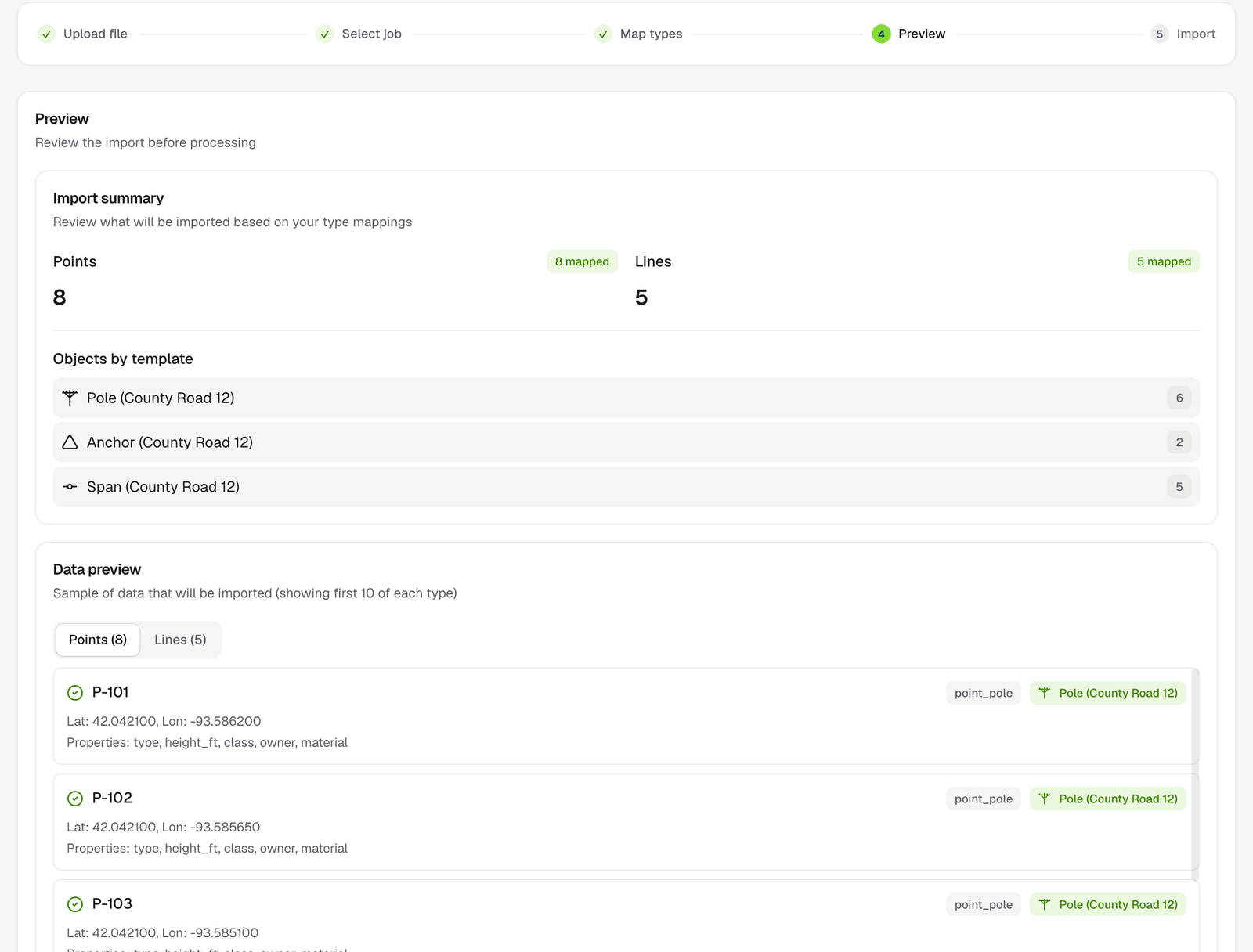 Click **Start import**. The log shows each object as it's created, including which pole each anchor was linked to. You can pause, resume or stop.
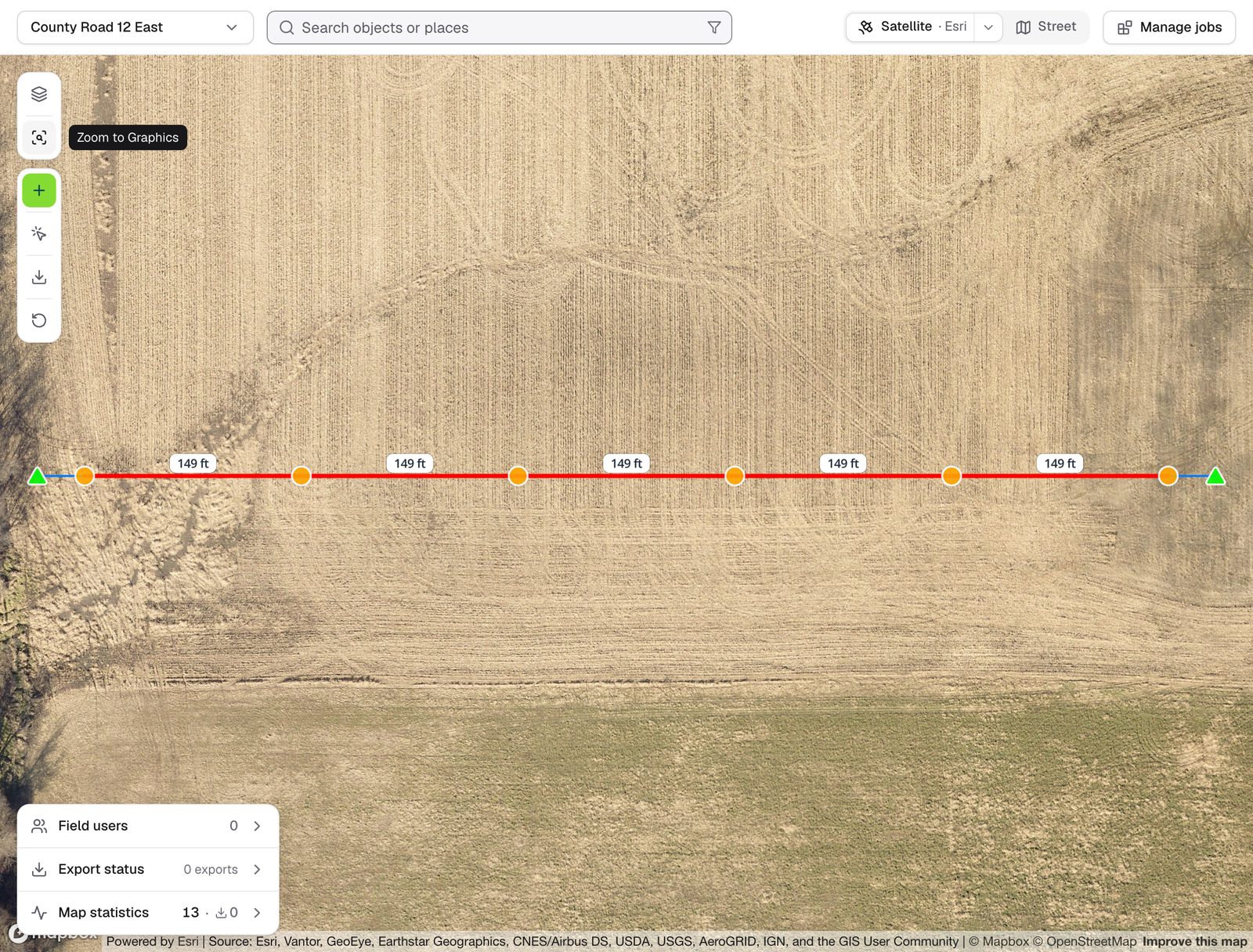
 Click **View on map** to see the job.
 ## Good to know
* **Importing the same file twice creates everything twice.** To update a job, import only new features, or start a new job.
* **Photos aren't imported**, even from KMZ files that include images.
* **Polygons are skipped.**
* **Anchors** are linked to their pole by an ID in the file if there is one, otherwise to the nearest pole.
* **Spans** connect to poles by matching coordinates. If a span's ends don't line up with a pole (within about 50 m), the span is skipped and the log says so.
## Troubleshooting
The file type isn't one Cloneable reads, or the extension is wrong. Export again as `.kml`, `.kmz` or `.geojson`.
KML and GeoJSON files can be up to 50 MB, KMZ up to 100 MB. Split the file, or save it as KMZ.
Every type is set to **Skip import**. Choose a template for at least one type in the Map types step.
It was built for a different kind of file. Choose another, or click **Build a configuration from this file** (admins only).
Neither end of the line is near a pole Cloneable imported. Check the line's coordinates line up with your poles, and that poles are mapped to a template.
The anchors' type was mapped to the pole template. Map it to your anchor template instead.
This documentation is built and hosted on [Mintlify](https://mintlify.com), a developer documentation platform.
## Good to know
* **Importing the same file twice creates everything twice.** To update a job, import only new features, or start a new job.
* **Photos aren't imported**, even from KMZ files that include images.
* **Polygons are skipped.**
* **Anchors** are linked to their pole by an ID in the file if there is one, otherwise to the nearest pole.
* **Spans** connect to poles by matching coordinates. If a span's ends don't line up with a pole (within about 50 m), the span is skipped and the log says so.
## Troubleshooting
The file type isn't one Cloneable reads, or the extension is wrong. Export again as `.kml`, `.kmz` or `.geojson`.
KML and GeoJSON files can be up to 50 MB, KMZ up to 100 MB. Split the file, or save it as KMZ.
Every type is set to **Skip import**. Choose a template for at least one type in the Map types step.
It was built for a different kind of file. Choose another, or click **Build a configuration from this file** (admins only).
Neither end of the line is near a pole Cloneable imported. Check the line's coordinates line up with your poles, and that poles are mapped to a template.
The anchors' type was mapped to the pole template. Map it to your anchor template instead.
This documentation is built and hosted on [Mintlify](https://mintlify.com), a developer documentation platform.