

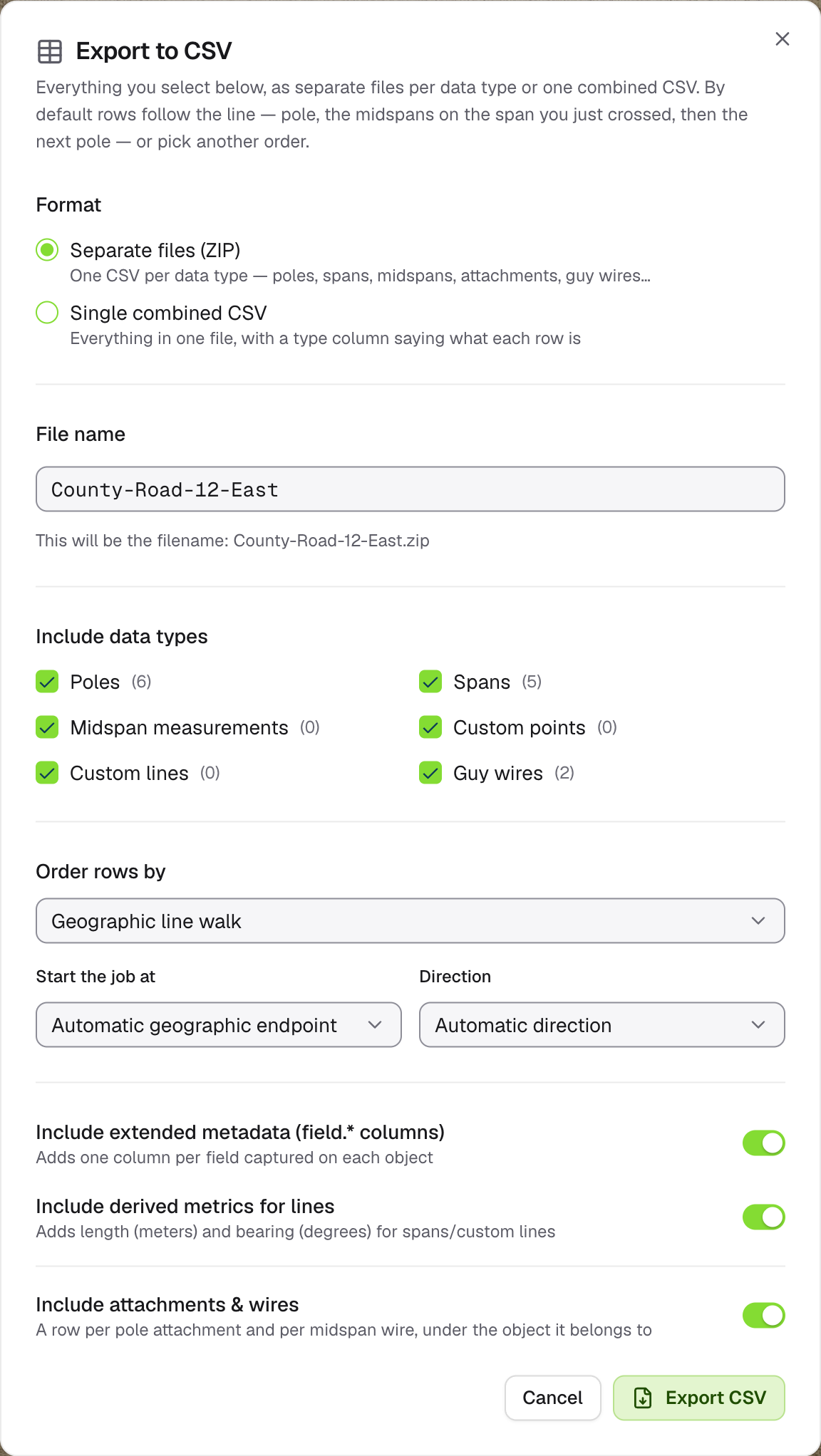
Export to CSV
Format
Options
- Include data types: tick the kinds of object to include. All are ticked by default.
- Order rows by:
- Geographic line walk (default): rows follow the line, pole by pole, with each span’s midspans after it. Choose where to start and which direction to go, or leave both on automatic.
- Data object field: sort by any field, ascending or descending.
- Captured date: oldest or newest first.
- Include extended metadata: one column per field captured on each object. On by default.
- Include derived metrics for lines: length in metres and bearing in degrees for spans and custom lines. On by default.
- Include attachments & wires: a row per pole attachment and per midspan wire. On by default.
latitude and longitude columns.
Click Export CSV. A progress window shows the steps, then the file downloads.