Make a .kmz file to open in Google Earth or GIS software, or send to a client
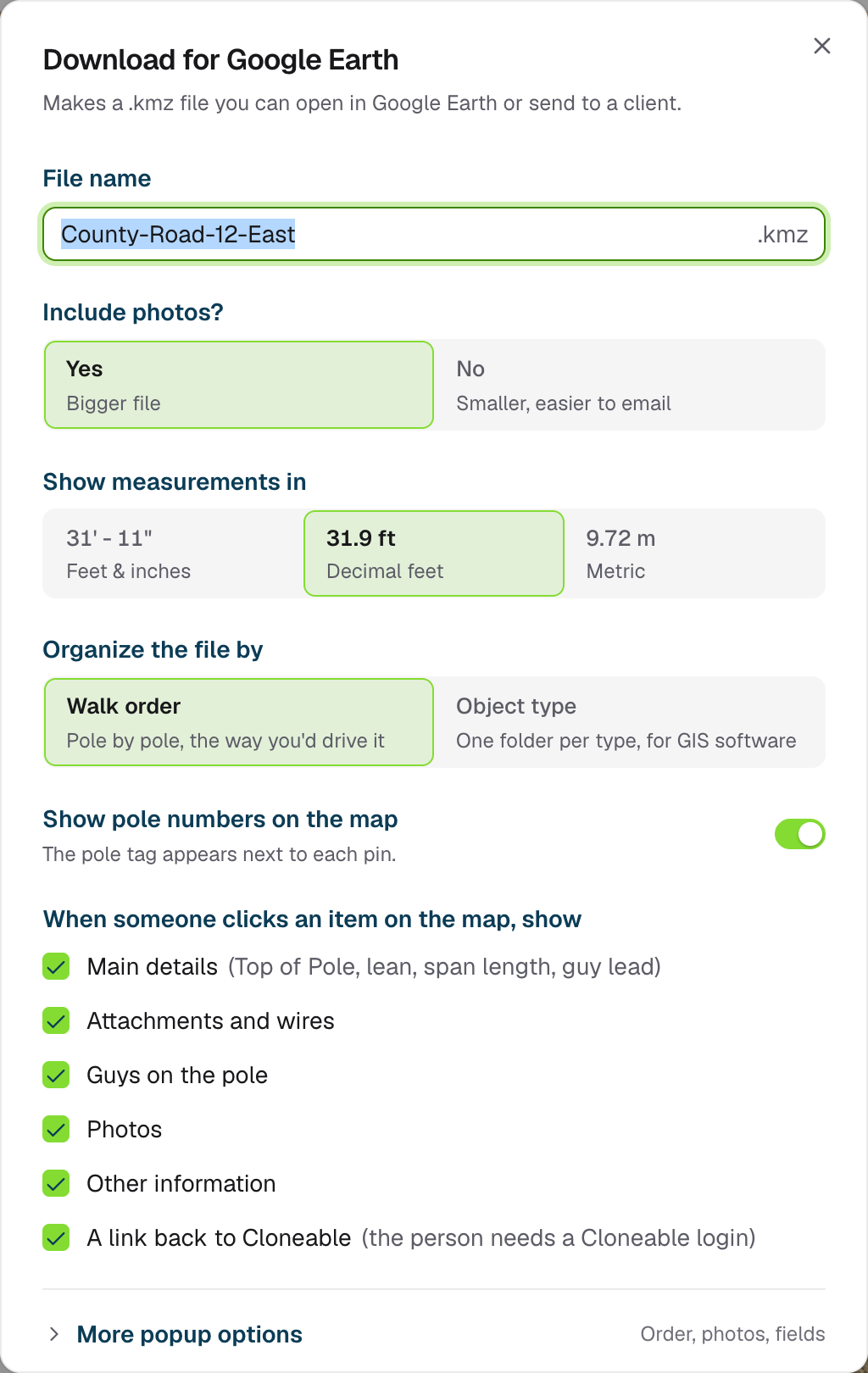
A KMZ file opens in Google Earth and most GIS software. It shows each pole, span and anchor with its map icon and pole number. Clicking an item opens a popup with its details and, if you include them, its photos.Open the job on the map, click Export data and choose Export to KMZ.
Under When someone clicks an item on the map, show, choose: Main details (top of pole, lean, span length, guy lead), Attachments and wires, Guys on the pole, Photos, Other information, and A link back to Cloneable (the person needs a Cloneable login). All are on by default.More popup options lets you list attachments highest first or as collected, show only the measurement photo or all photos, and hide or rename individual fields.For GIS software: Add a data table to each item lets ArcGIS or QGIS read every field as a column. Google Earth doesn’t show it.Your choices are remembered in this browser for next time. Reset to defaults puts them back.
The dialog shows what the file will contain and roughly how big it will be. Click Download. A progress window shows each object as it’s processed, then the file downloads.
Over 50 MB, some GIS software is slow to open the file. Choose No under Include photos? to make it smaller.
Assistant
Responses are generated using AI and may contain mistakes.