Bring Katapult jobs into Cloneable, collect in the field and export the results back
Cloneable connects to Katapult Pro. Your Katapult model becomes a Cloneable configuration, your Katapult jobs come in as Cloneable jobs, crews collect in the Cloneable app, and the results go back to Katapult.
2. Create a configuration from your Katapult model
This builds Cloneable templates from your Katapult model’s node types, connection types and attributes. You do it once per model.Open Settings → Configurations → New configuration → From a Katapult model.
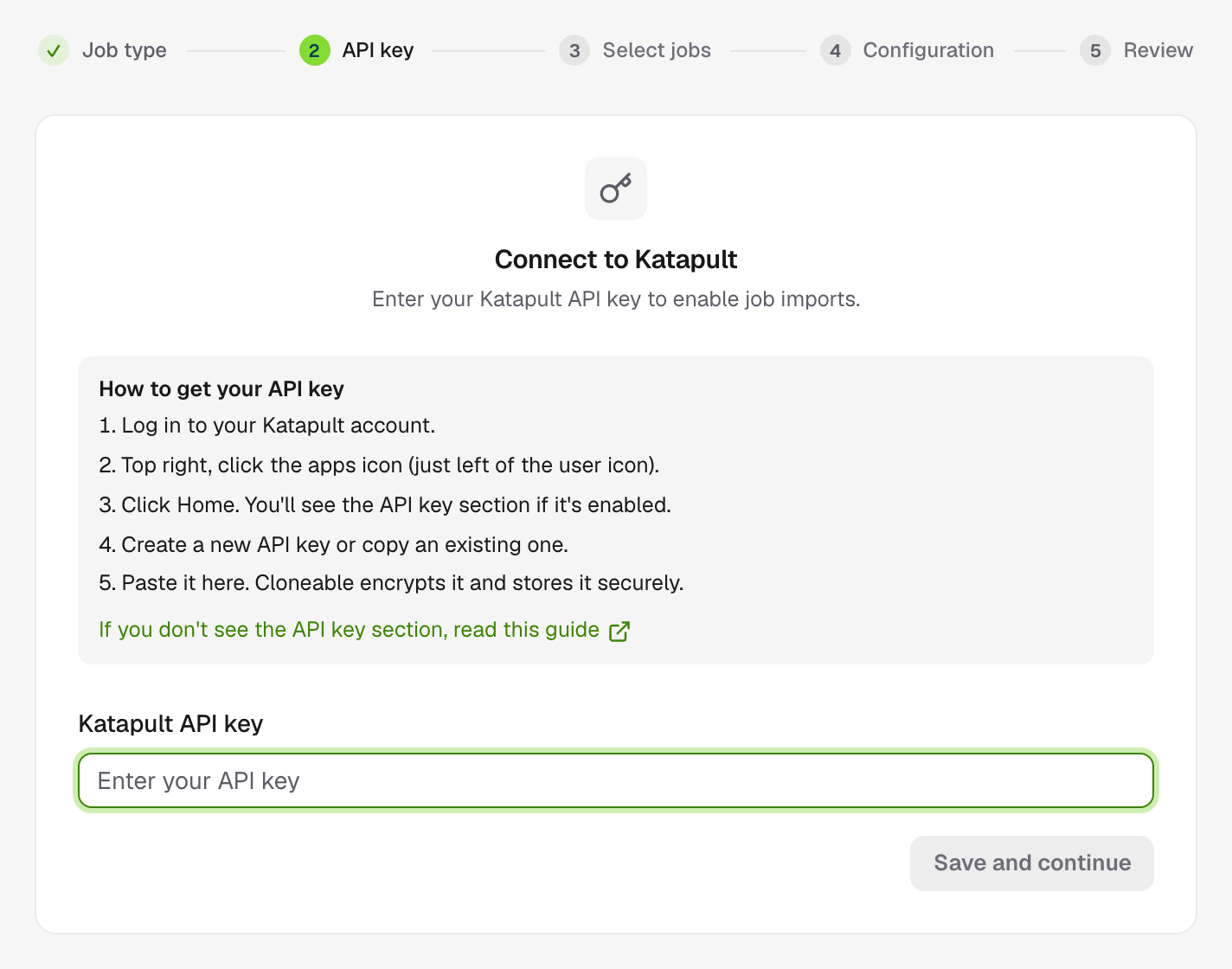
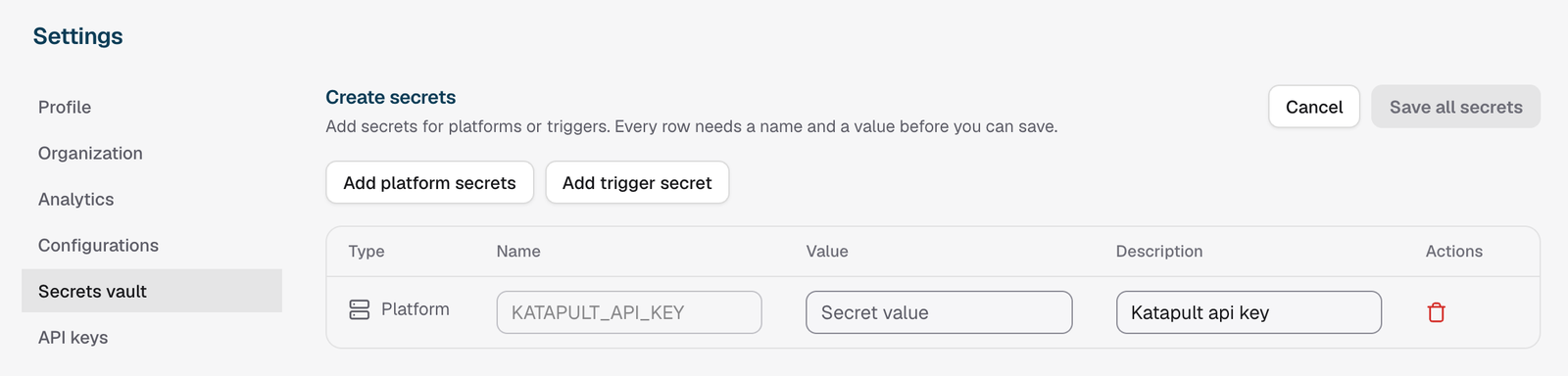
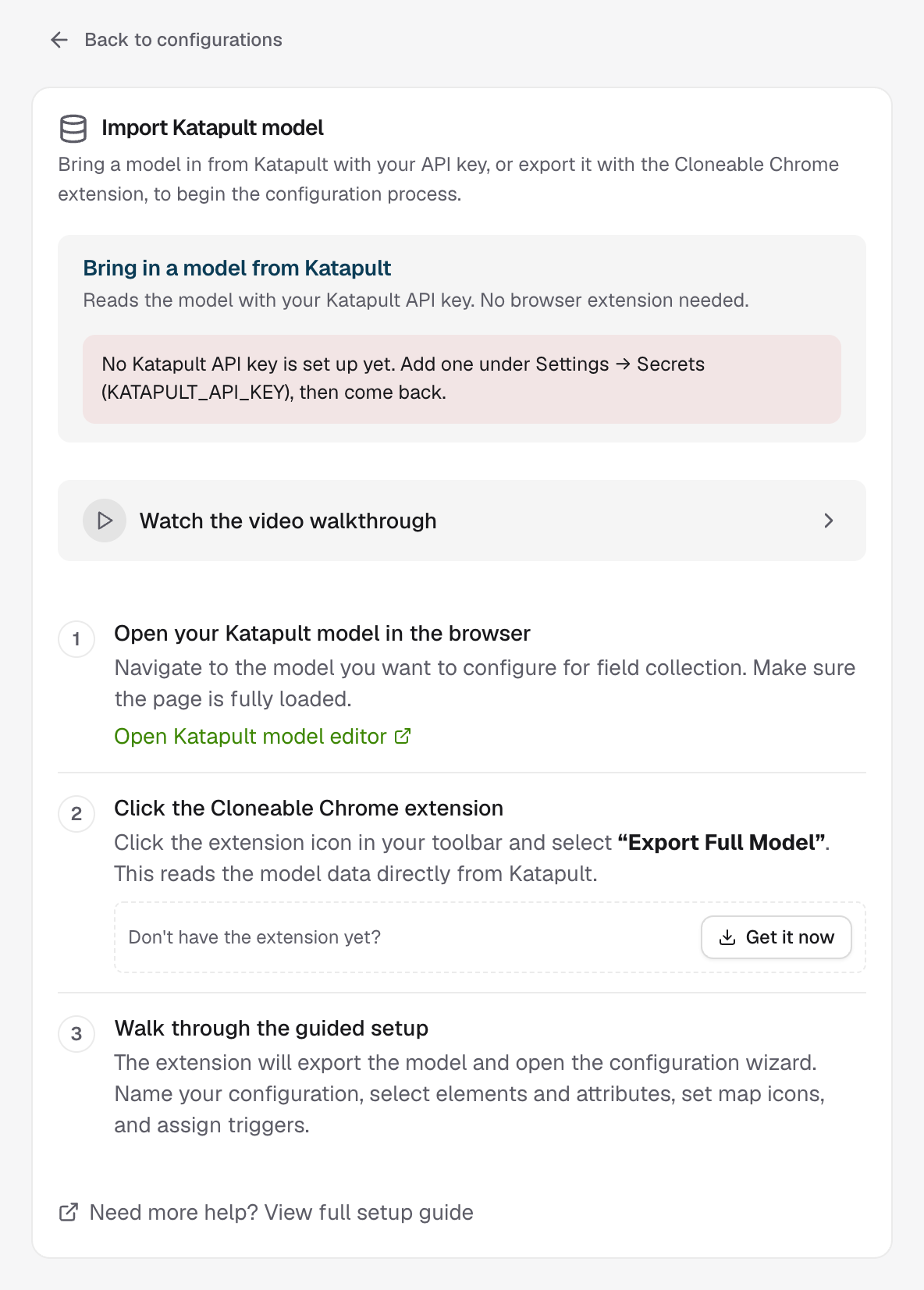
Bring the model in with your API key, or send it from Katapult with the Chrome extension
Get the model in one of two ways:
With your API key: choose the model and click Load model.
With the Chrome extension: open the model in Katapult, click the Cloneable extension and choose Export Full Model.
Then choose Create new configuration and walk through the guided setup. Each step ends with Confirm & continue.
1
Name your configuration
Use letters, numbers and underscores. Choose the measurement unit crews will use in the app.
2
Select model elements
Pick the node types, connection types and other elements to include.
3
Select attributes
Pick the attributes to collect for each type.
4
Map Katapult nodes
Match Katapult types to Cloneable’s pole, span, span measurement and guy anchor.
5
Configure visualization icons
Choose how each type looks on the map.
6
Connect Katapult
Confirm the API key and the import and export triggers. The defaults are right for most teams.
7
Final review & import
Optionally choose a field to show as a label next to each point, such as the pole tag. Click Complete import.
If saving fails partway through, Cloneable offers to roll back and delete what it created, so you can start again cleanly.
When your Katapult model changes, open the configuration’s ⋯ menu and choose Edit Katapult selections…, or import the model again and choose Update existing configuration.
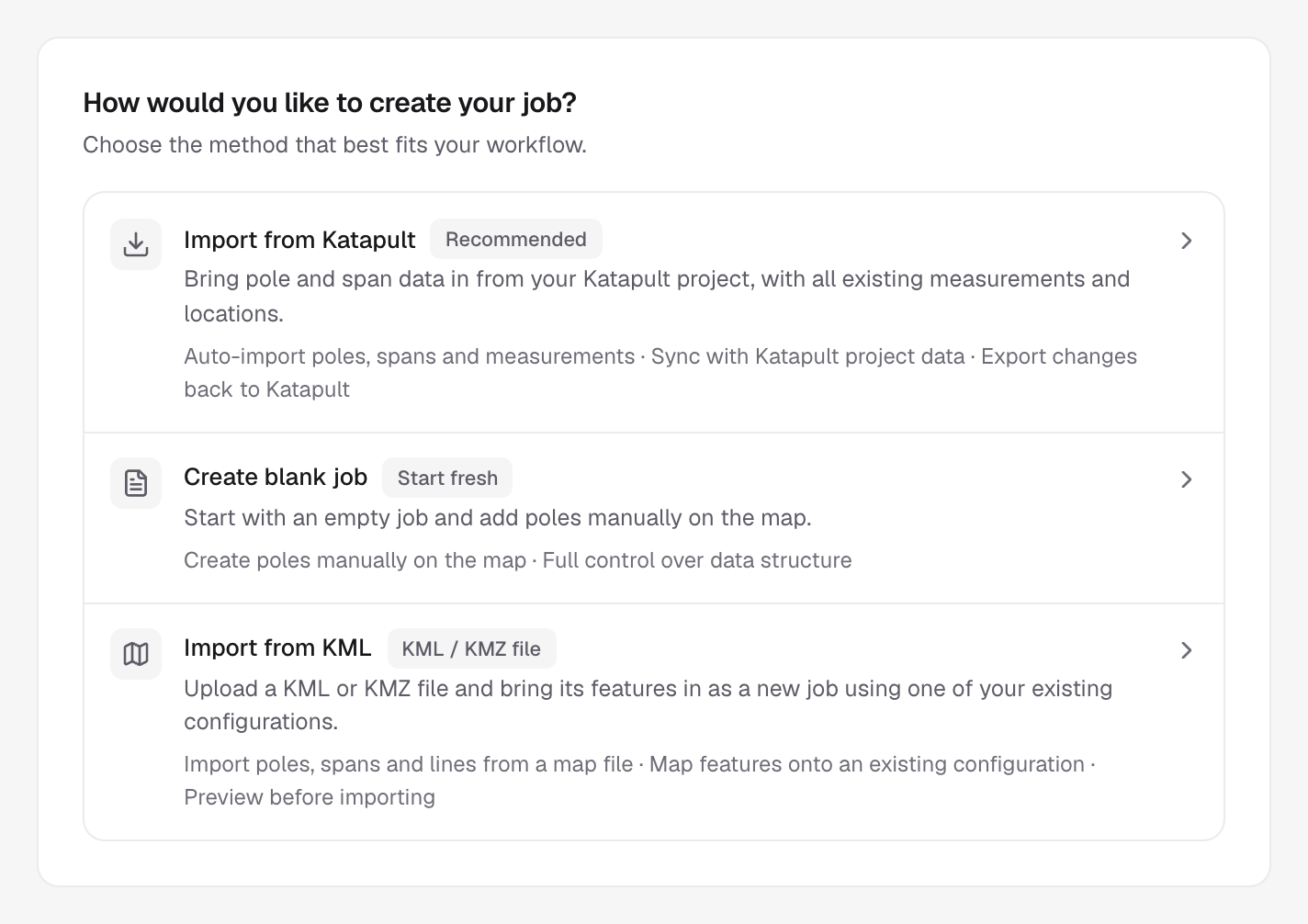
On the dashboard, click Add job and choose Import from Katapult.
Choose Import from Katapult
1
Select Katapult jobs
Choose one or more jobs from your Katapult account. Each becomes its own Cloneable job, named after the Katapult job. With one job selected you can change its name.
2
Select configuration
Choose the configuration built from that job’s Katapult model. Badges show which configurations match the model. If you Link configuration, future jobs on the same model pick it automatically.
3
Review and create
Check the details and click Create job and start import, or Create N jobs and start imports for several.
The import runs in the background and can take a few minutes for large jobs. When you import several jobs, they run one after another and the list shows each one’s status. If one shows Not confirmed, click Check again before importing it a second time.
Importing a Katapult job again adds anything new in Katapult. It doesn’t update objects already in Cloneable or remove anything.
Export after crews have finished and their phones have synced, so every photo has uploaded.
1
Open the job on the map
Click Export data in the map toolbar and choose Export to Katapult.
2
Decide about deleted items
If items were deleted in Cloneable but still exist in Katapult, choose Export only to leave them in Katapult, or Export and delete to remove them from Katapult first. Deleting in Katapult can’t be undone.
3
Start the export
Click Export to Katapult, then Run trigger to confirm.
Only objects that changed since their last export are sent, so exporting again is safe and fast.
Click the object on the map, open its History tab and switch to Exports. Use Export → Export updates to send new data, or Force export all to send everything again. Force export can create duplicates in Katapult, so use it only when asked to.
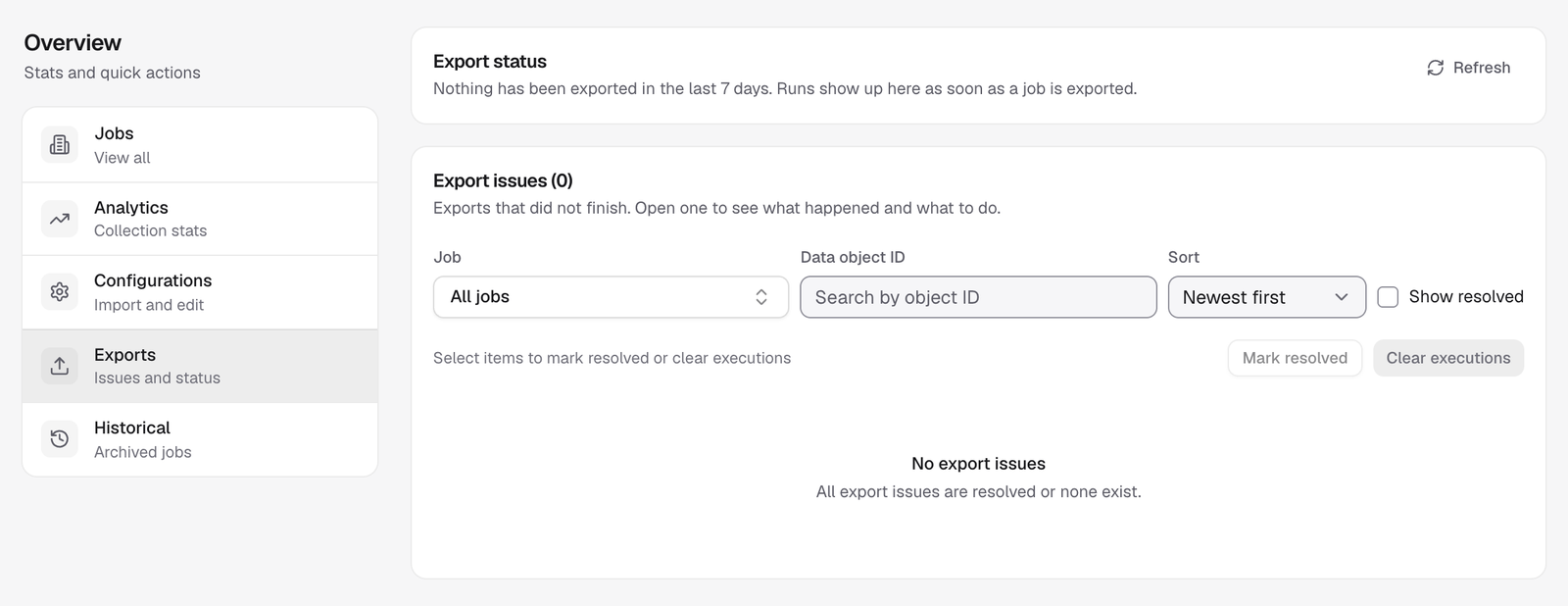
The dashboard’s Exports tab shows what’s exporting now and any exports that didn’t finish.
Export status and export issues
Open an issue to see What happened and What you can do. When it’s fixed, export again and Mark resolved. Common issues and fixes are in Troubleshooting.
Assistant
Responses are generated using AI and may contain mistakes.